

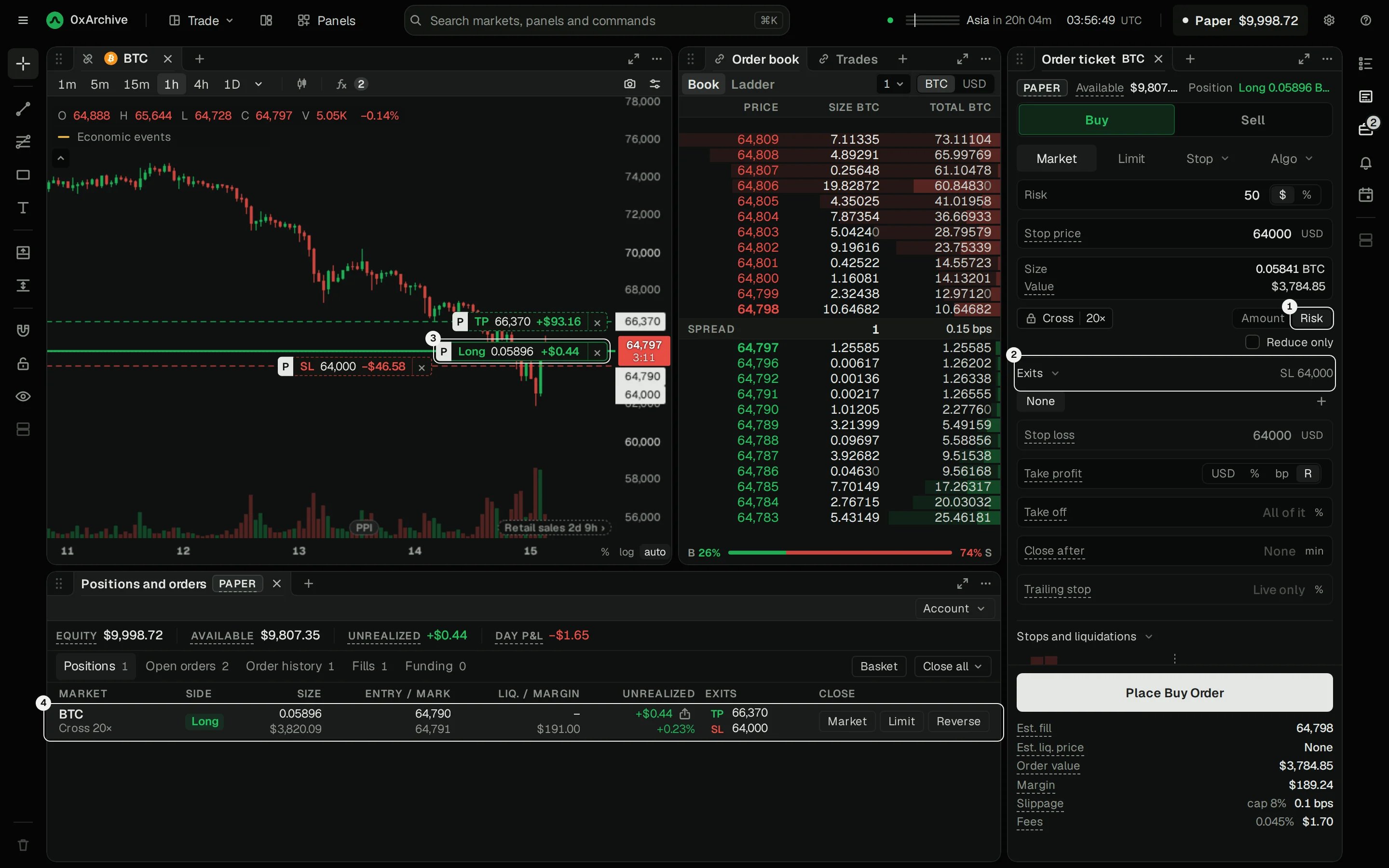
A BTC long on Paper: sized to lose $50 at the stop, with a take-profit at twice that distance.
- Size it by how much you’re willing to lose.
- Set your exits: a stop loss and a take-profit.
- Watch it on the chart.
- Manage and close it from the positions panel.
1. Open the Trade view
The Trade view puts the chart, the order book, the order ticket and your positions on one screen. The top bar shows Paper and your account’s value, and the ticket and the positions panel both carry a PAPER tag.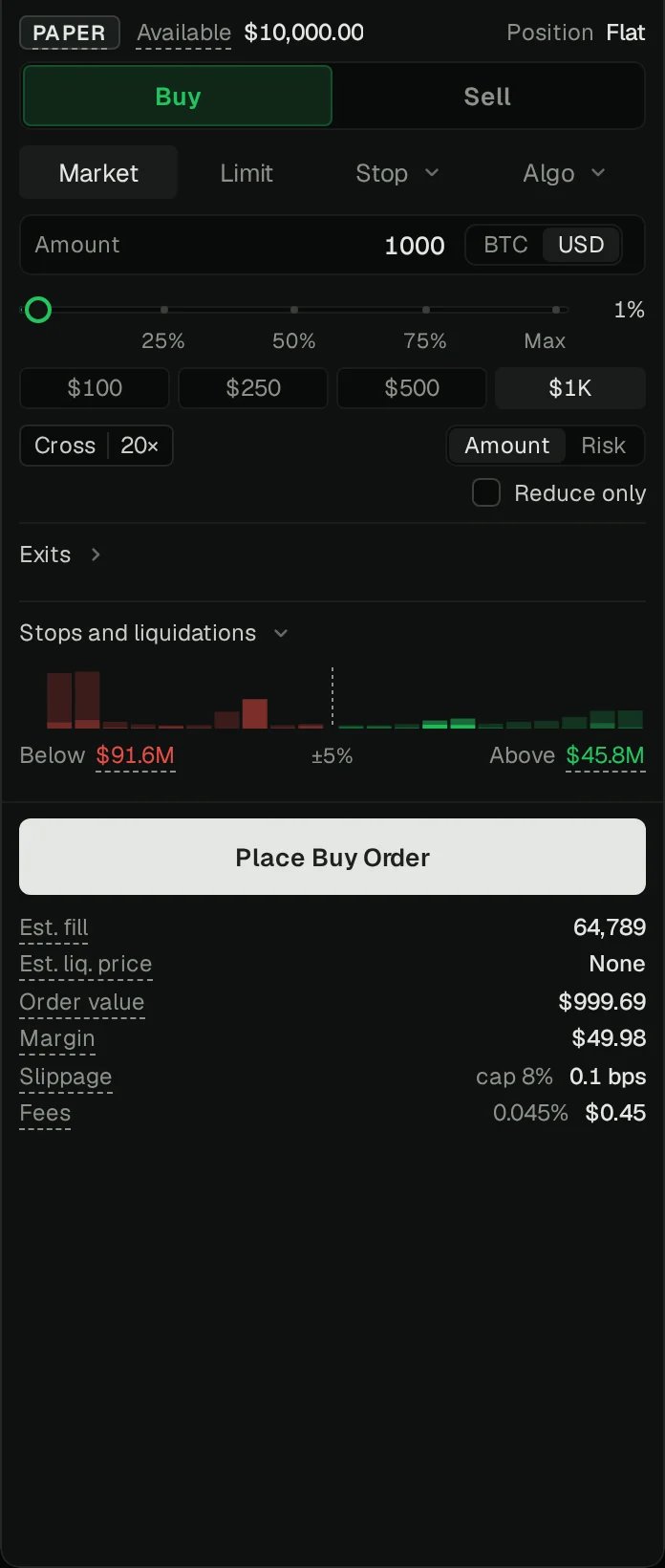
- Market fills now, at the best prices in the book.
- Limit waits in the book at your price.
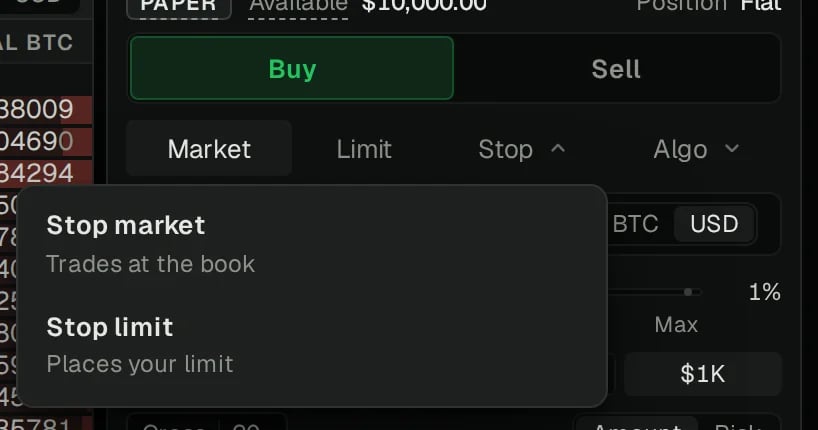
- Stop waits for a trigger: a stop market trades at the book once the mark price reaches it, and a stop limit places your limit there.
- Algo holds Scale, TWAP, Chase and the trailing stop. Trade on Hyperliquid covers each one.
2. Size it by risk
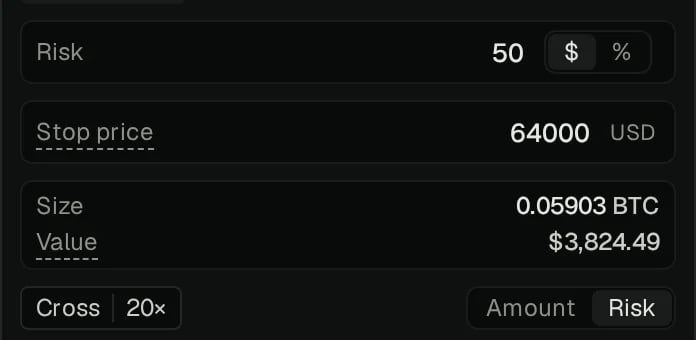
The simplest size is an Amount: type it in USD or BTC, drag the slider for a share of what’s available, or pick $100 to $1K. Cross 20× sets the margin mode and leverage. Sizing by Risk is the better habit. Switch Amount to Risk, then enter:- Risk: what you’ll lose if the stop is hit, in dollars or as a percentage of the account.
- Stop price: where you’re wrong.
3. Set your exits
Open Exits under the size. In Risk mode the stop price is already the stop loss.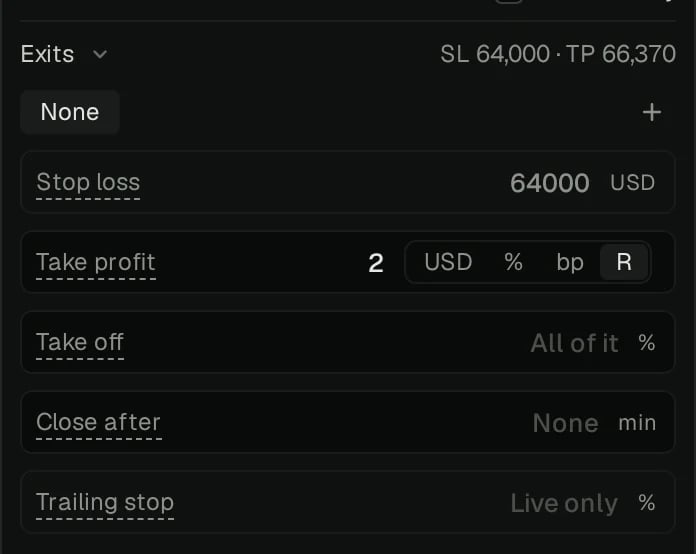
- Stop loss and Take profit take a price, a percentage or basis points. Take profit also takes R, multiples of your risk: 2R targets twice the distance to your stop.
- Take off closes only part of the position at the target, such as half.
- Close after closes the whole position at market that many minutes after the entry fills.
- Trailing stop is for Live trading only.
- Presets keep a set of exits you use often. Save one with + and pick it next time.
4. Check it and place it
Under the button, the ticket estimates what the order will do before you send it.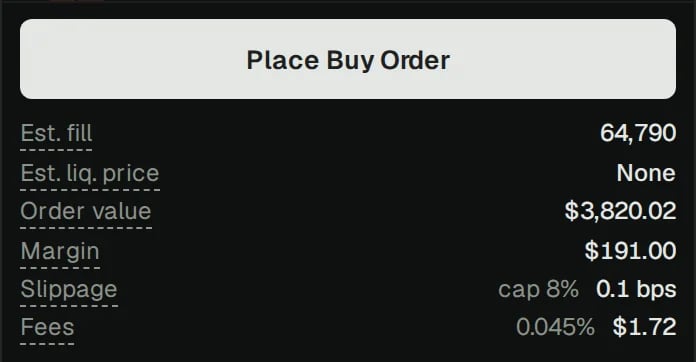
- Est. fill: the average price the book gives the order now.
- Est. liq. price: where the position the order leaves would be liquidated.
- Order value and Margin: the position’s size and what it ties up.
- Slippage and Fees: what the fill costs. Paper charges Hyperliquid’s own fees.
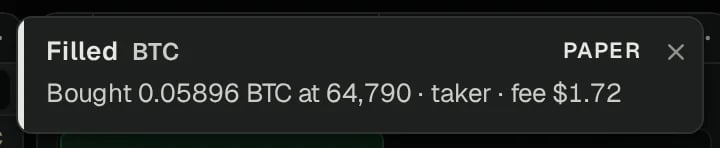
5. Watch it on the chart
The position and its exits appear on the chart as lines, each with what it would make or lose at that price. P marks them as Paper.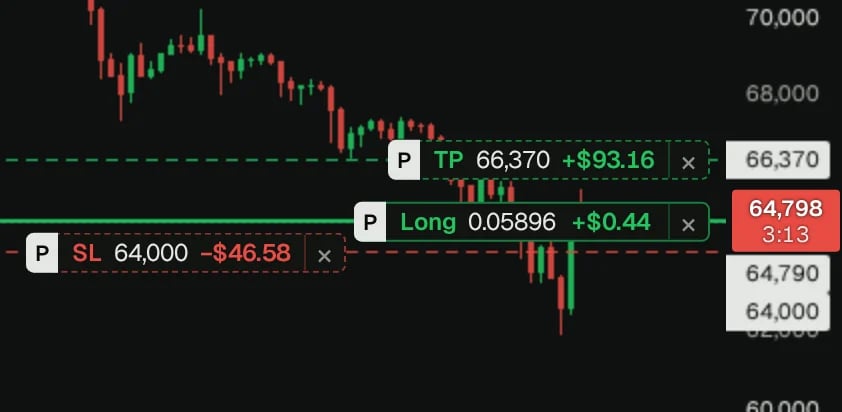
6. Manage and close it
The positions panel under the chart has the account and the trade.
- Equity, Available, Unrealized, Day P&L: the account at a glance.
- Exits: the position’s TP and SL. Your exits are reduce-only orders, so Open orders counts them.
- Close: Market closes now, Limit closes at your price, and Reverse flips to the other side.
- Close all closes every position at once.
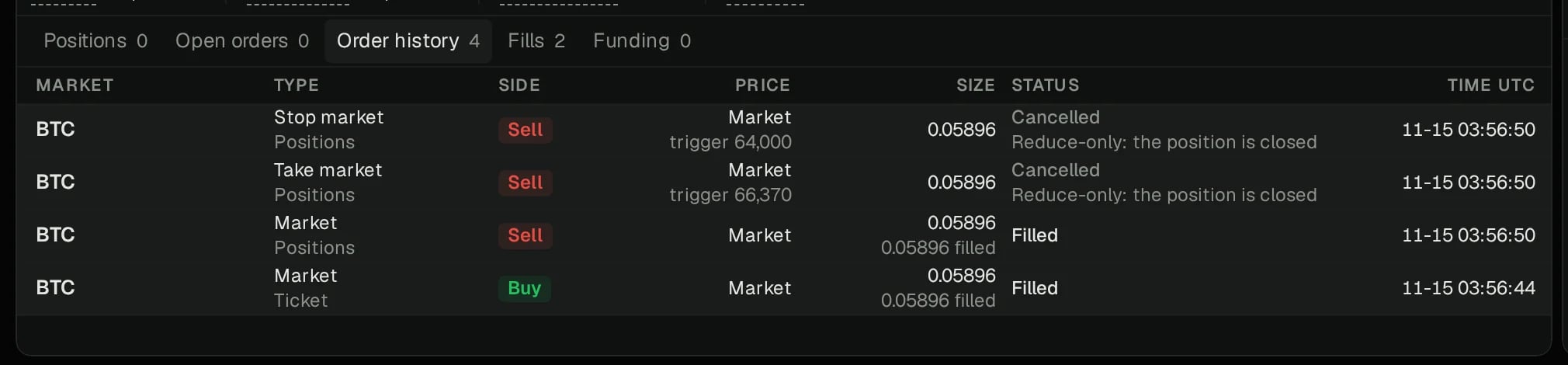
7. Start over or set a limit
Account in the positions panel holds two settings.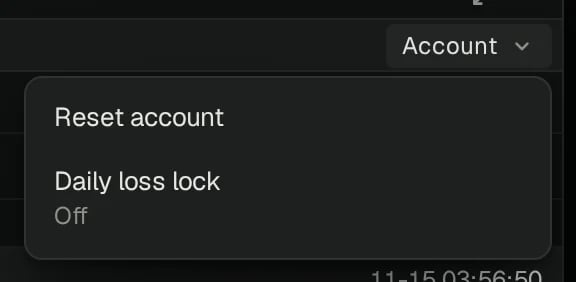
- Reset account starts again from a balance you pick: $1,000, $10,000, $100,000 or your own. The finished run’s summary is kept.
- Daily loss lock sets the most you’ll lose in a day, in dollars. Reach it and every order is cancelled, every position closes, and the account is locked until 00:00 UTC. Set it before you need it.