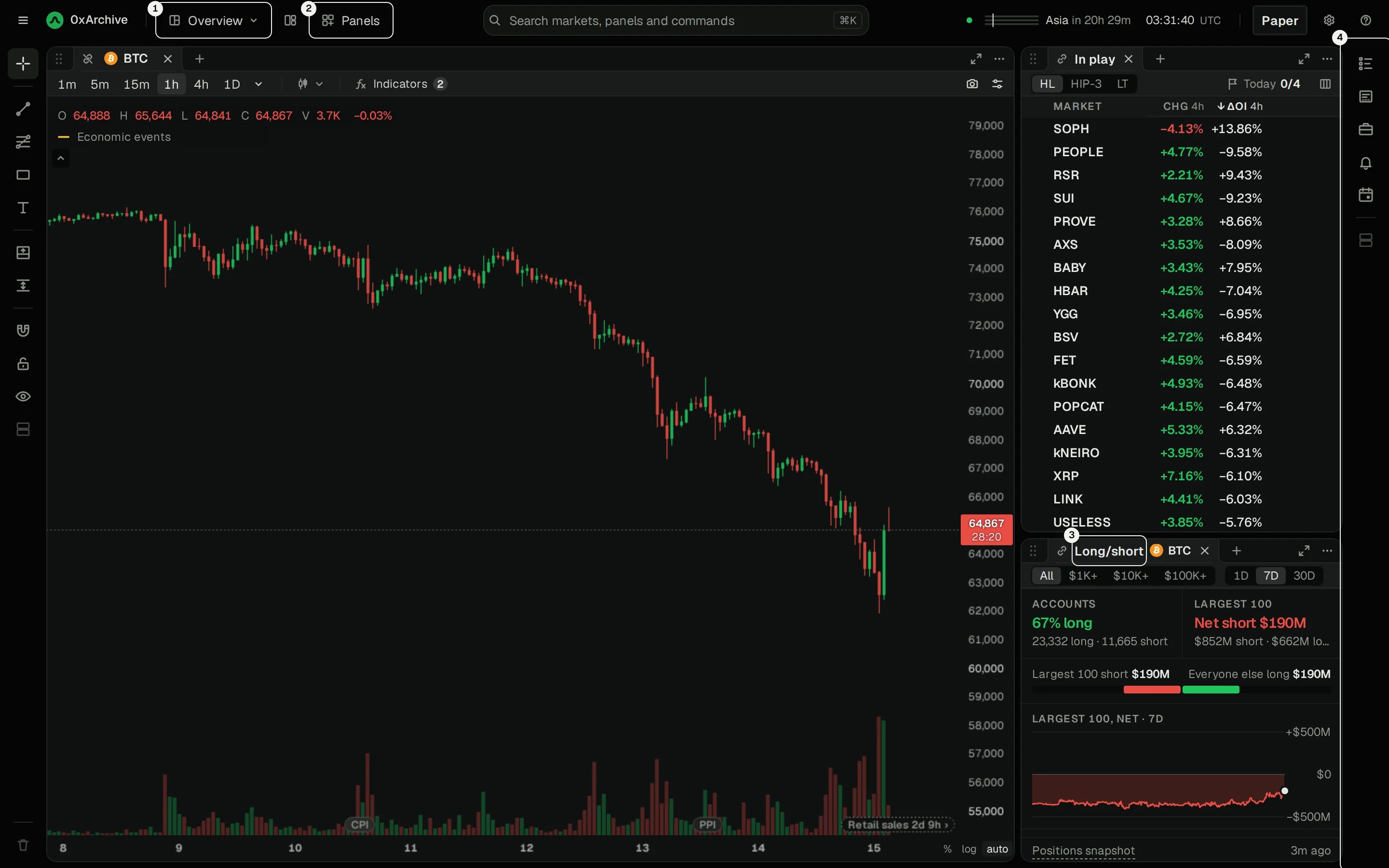
The 0xArchive Terminal on the Overview view, with the Views menu, the Panels button, a panel's tab and the right rail numbered 1 to 4

The Overview view: a chart, In play and Long/short. Four places shape the screen.

The screen is a set of panels, and a view is one arrangement of them. Four places shape it:
  1. Views: switch to a ready-made screen, or save your own.
  2. Panels: add any of the 25 panels.
  3. A panel’s tab: drag it to move the panel, or open its menu.
  4. The right rail: tools you want on every screen, such as the watchlist and the order ticket.
On Windows and Linux, read ⌘ as Ctrl and ⌥ as Alt. Every key below is also a button or menu item on screen, and you can change any of them in Settings → Keyboard.

1. Start from a view

The menu at the top left is named after the view you’re on. Its presets are screens built for one way of trading, each a key away.
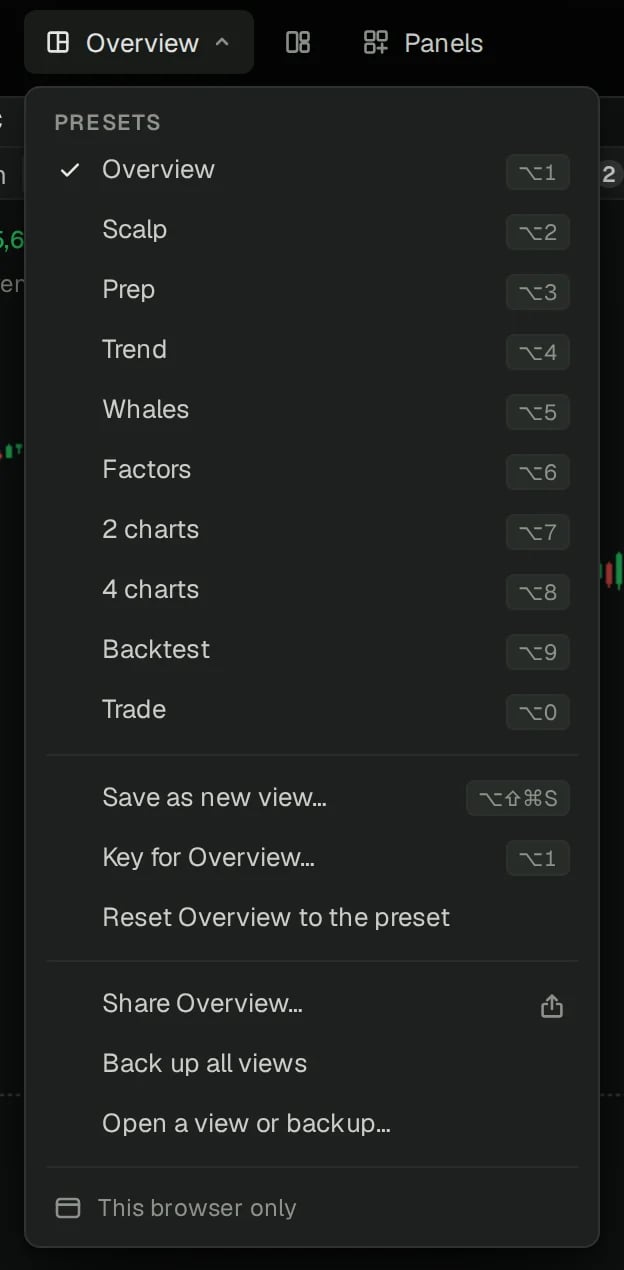
The Views menu: ten presets from Overview to Trade with their keys, then save, reset, share and back up
Hover a preset in the menu to read what it’s for. A view with two or more charts adds Sync time across charts: scroll or zoom one chart, and the others show the same hours.

2. Add a panel

Panels in the top bar lists every panel by the job it does. The count at the top says how many are open.
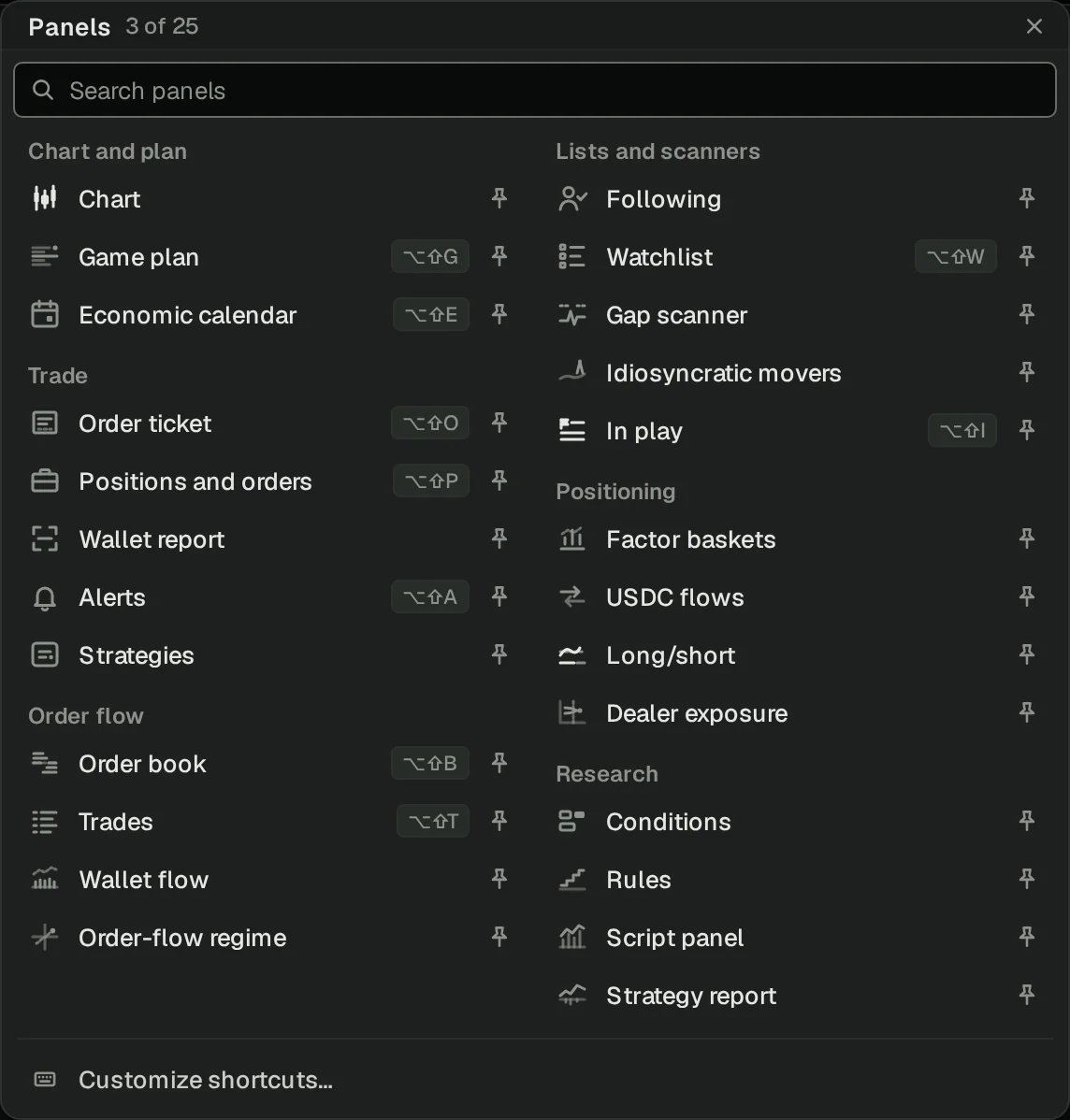
The Panels list, grouped into Chart and plan, Trade, Order flow, Lists and scanners, Positioning and Research, with keys and pins
  • Click a panel to add it. It goes where it fits at a useful size, near panels of its kind, taking room from panels that can spare it. With no room left, it joins a panel as a tab.
  • Drag a panel out of the list to put it exactly where you want it.
  • Search finds a panel by name. Press Return to add the first match.
  • The pin puts a panel’s button on the top bar, one click away on every view.
  • Keys open the panels you use most, such as ⌥⇧B for the order book and ⌥⇧T for trades. Customize shortcuts sets your own.
The + beside a panel’s tabs adds another panel there, as a tab. To close a panel, use the × on its tab.

3. Move, resize and arrange

Drag a panel by its tab. Before you let go, the screen shows where it will land and a label says how, such as “Split left of Chart”.
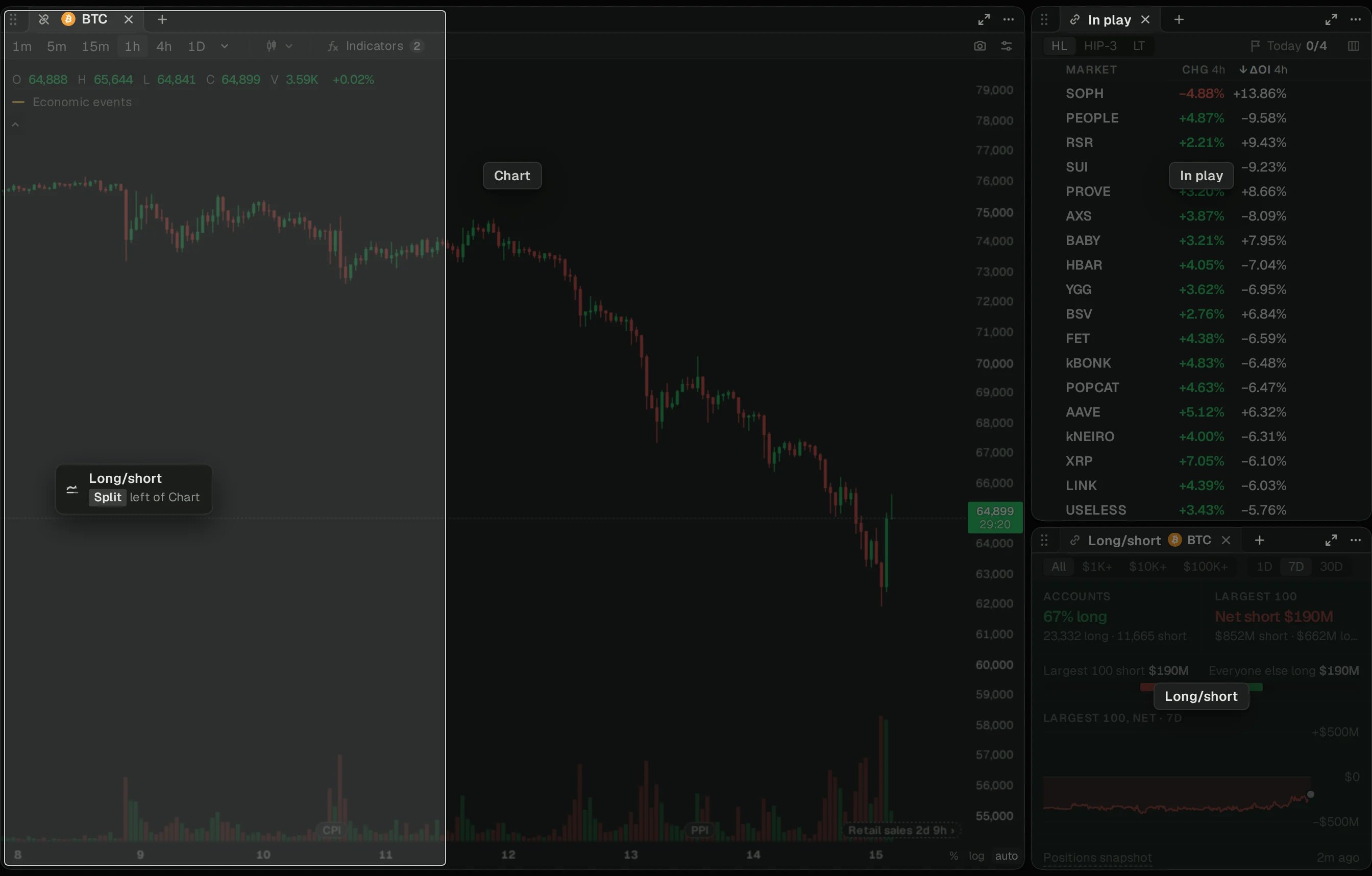
Long/short being dragged over the chart, with the left part of the chart shaded and a label reading Split left of Chart

Long/short dragged to the chart's left edge. The shaded area is where it will go.

  • On a panel’s edge: splits that panel and sits beside it.
  • On a row of tabs: joins those panels as a tab.
  • In a gap between panels, or at the screen’s edge: stands on its own there.
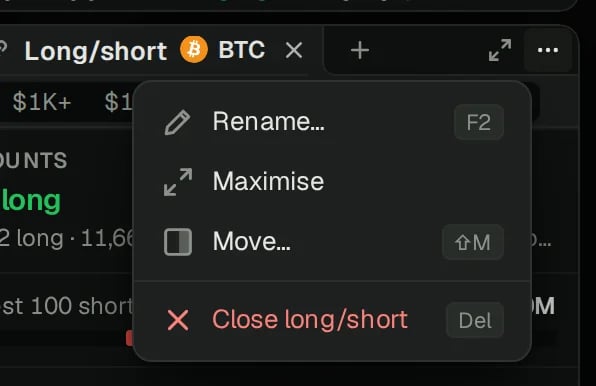
Press Escape mid-drag to put everything back. After a drop, Undo appears for a moment. Drag the line between two panels to resize them. A panel’s ⋯ menu holds the rest. Rename (F2) gives the panel your own title. Maximise fills the screen with it, and so does the arrow button beside ⋯. Move (⇧M) docks it with the arrow keys instead of the mouse, and Close (Del) removes it. Panels with a table also offer Export CSV.
A panel's menu: Rename, Maximise, Move and Close long/short, with their keys
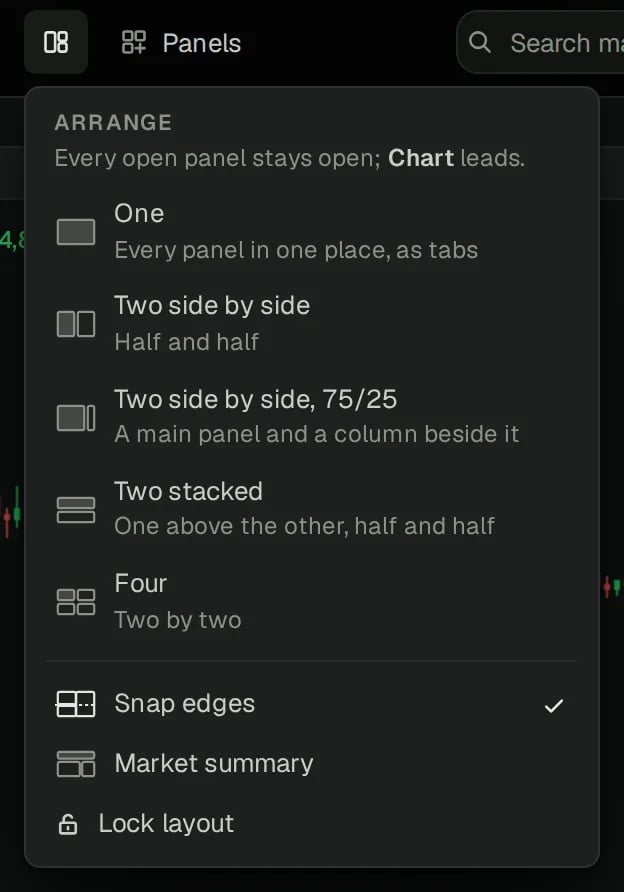
Arrange, the button beside Views, lays out the panels already open in one go. It never opens or closes a panel, and the chart takes the lead place.
The Arrange menu: One, Two side by side, Two side by side 75/25, Two stacked and Four, then Snap edges, Market summary and Lock layout
  • One puts every panel in one place, as tabs. Two side by side, 75/25, Two stacked and Four split the screen.
  • Snap edges pulls an edge you drag into line with other panels’ edges and with the screen’s halves and thirds. Hold ⌥ to skip it for one move.
  • Market summary adds a band over the panels with the market’s price, 24h change, volume, open interest and funding.
  • Lock layout stops panels moving by accident. Unlock it from the same menu.

4. Open tools from the right rail

The icons down the right edge are the tools every screen wants: Watchlist, Order ticket, Positions and orders, Alerts and Economic calendar. Click one to open it beside your panels, and click it again to close it.
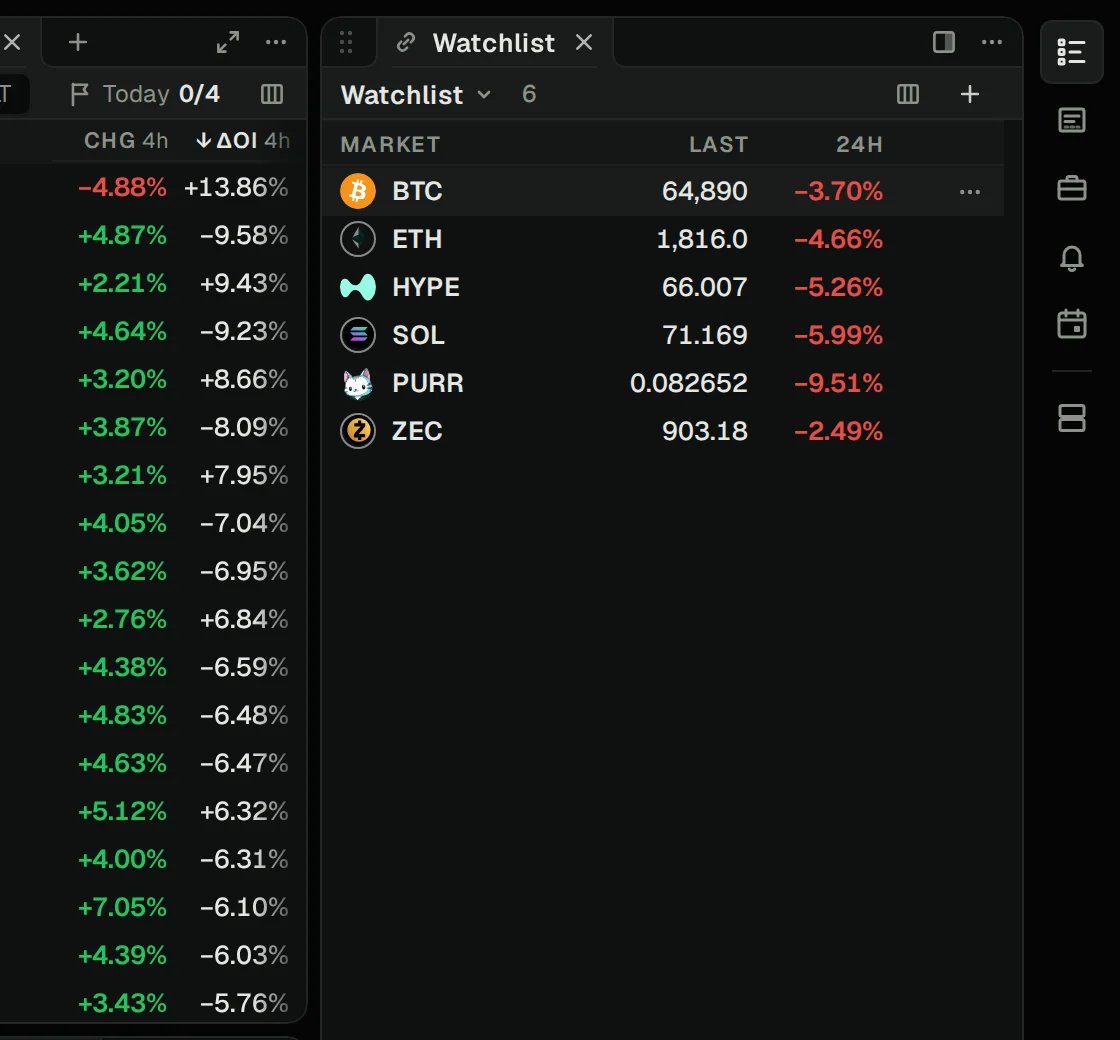
The watchlist docked at the right edge beside In play, with the rail's icons on the far right

The watchlist open from the rail. The panels moved over to make room.

The tool docks beside the layout and never covers a panel. Close it and every panel gets its room back. Stack, the last icon, or ⇧-click on a second icon, puts another tool under the first. What the rail holds never changes your view. The chain icon on a panel’s tab says which market it shows.
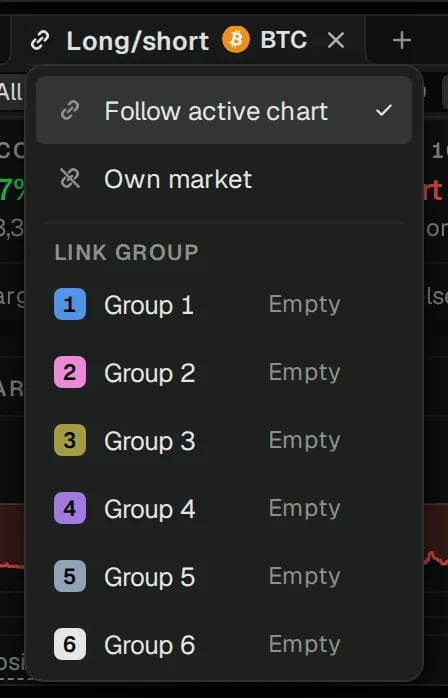
Long/short's link menu: Follow active chart, Own market, and link groups 1 to 6
  • Follow active chart: the panel shows whatever market the chart in focus shows.
  • Own market: the panel keeps its market while the charts change.
  • Group 1 to 6: panels in the same group share a market. On a view with two charts, put each chart and the panels about it in a group of its own, and each set follows its own market.
On a list such as In play or the watchlist, the same menu picks where a click on a market opens: the active chart, the list itself or a group.

6. Keep it

A dot on the Views button means the screen has changed: from the preset, or since you last saved your own view.
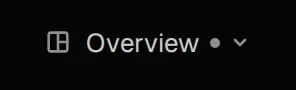
The Views button reading Overview, with a dot after the name
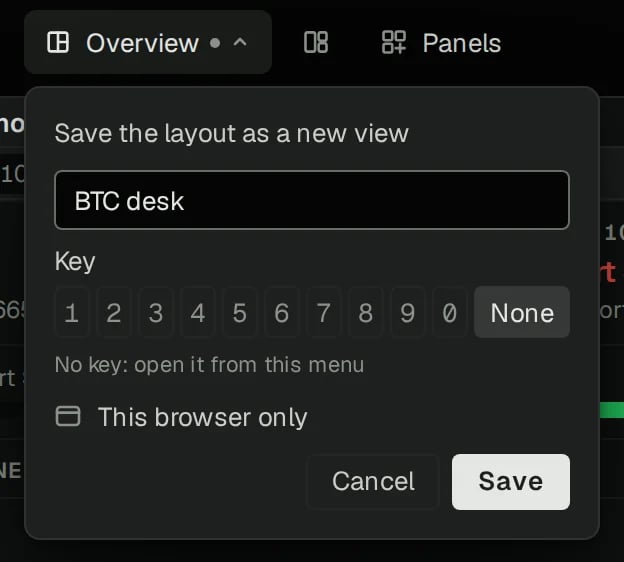
Save as new view (⌥⇧⌘S) keeps the whole screen: panels, where they sit, and each chart’s market, interval, chart type and indicators. Name it, and pick a key if you want one: ⌥ with that number opens it.
Save the layout as a new view, named BTC desk, with keys 1 to 0 or None
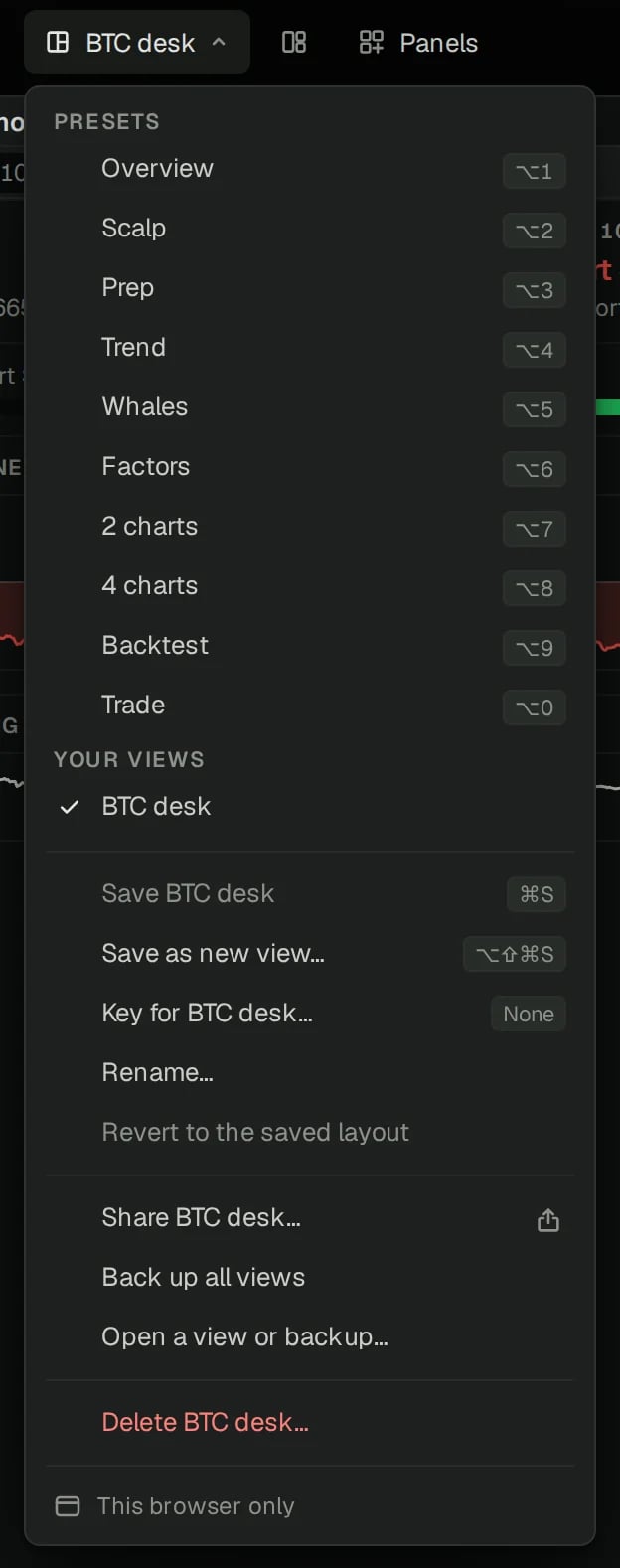
Your views sit under the presets.
The Views menu with BTC desk under Your views, and Save, Rename, Revert, Share, Back up and Delete
  • Save (⌘S) keeps changes to a view of yours. Revert to the saved layout drops them.
  • Reset to the preset puts a preset back the way it shipped.
  • Rename, Key for and Delete do what they say.
Views live in this browser. To carry them to another one, share or back them up.

7. Share it or back it up

Share saves the view you’re on as a file to send to anyone.
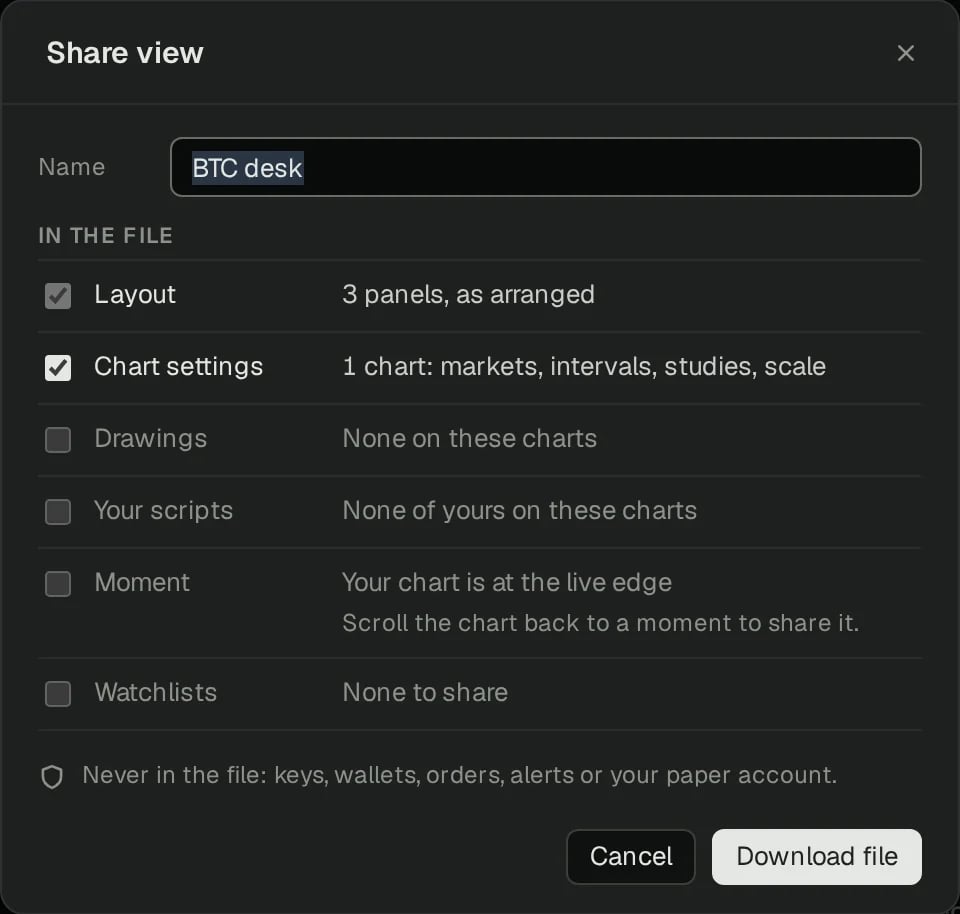
Share view: the name, then what goes in the file, Layout, Chart settings, Drawings, Your scripts, Moment and Watchlists, and Download file
Tick what goes in the file: the layout always, then chart settings, drawings, your scripts, watchlists, and the moment, the stretch of time on your chart, if you’ve scrolled back to one. Keys, wallets, orders, alerts and your paper account never go in. To open one, drop the file onto the Terminal, or use Open a view or backup in the Views menu. A shared view opens for you to try first: nothing is saved until you press Keep view, and your other views stay as they are. Back up all views saves every view of yours to one file, with their charts, drawings, scripts and watchlists. Restoring a backup adds to what’s there: no view of yours changes.

Next step

Put the screen to work: Read a market on the chart sets up each chart, and Trade on Hyperliquid covers the order ticket.
Last modified on November 15, 2026